
Access via SSH, Telnet, WinBox and RDP
Open an SSH, Telnet, WinBox or RDP session on a device, straight from the browser.
Who can do this: people with Total on Remote Access can reach every device. Everyone else can reach what an access rule allows.
Step by step
Section titled “Step by step”-
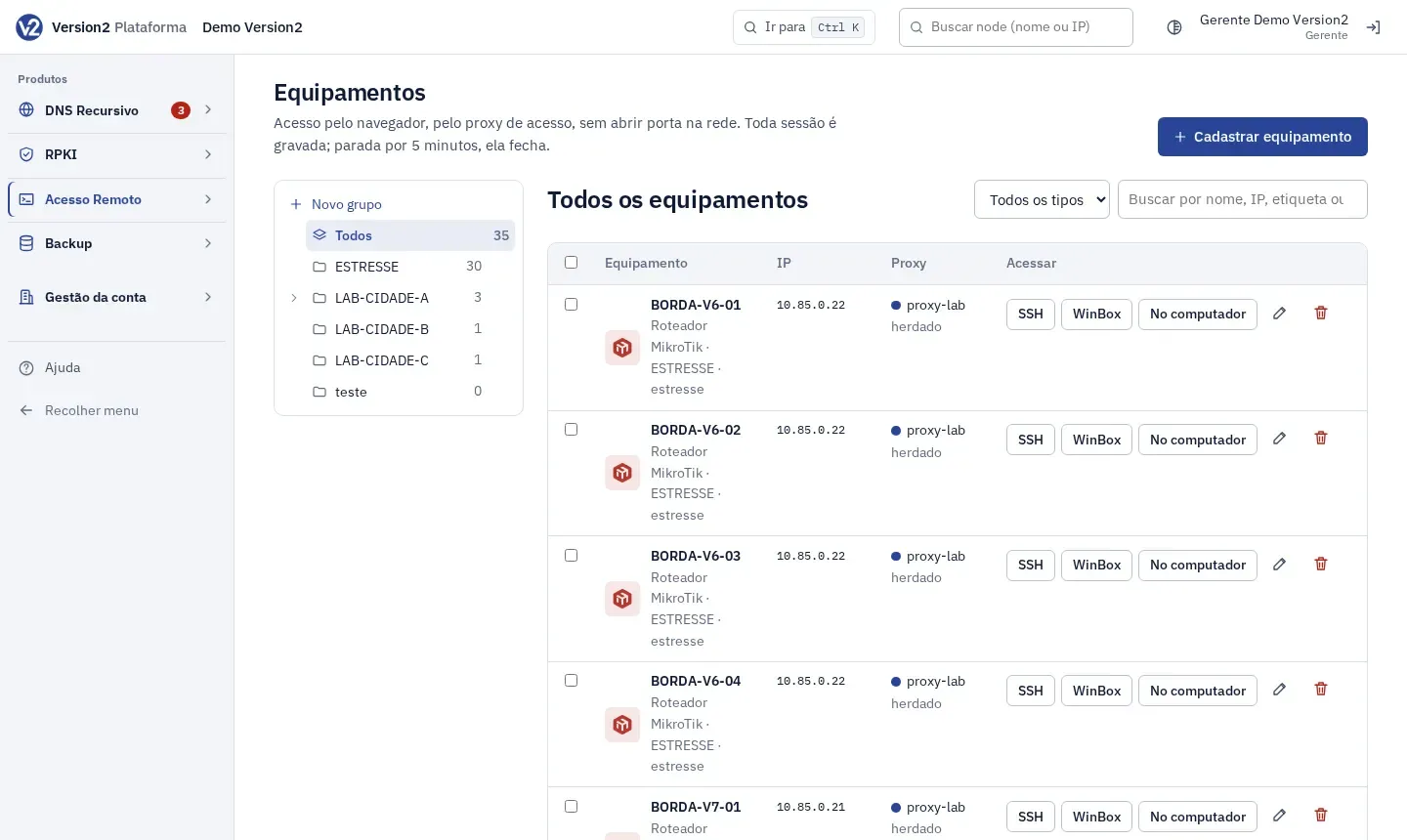
Open Equipamentos (Devices) and find the device in the tree or with the search.
-
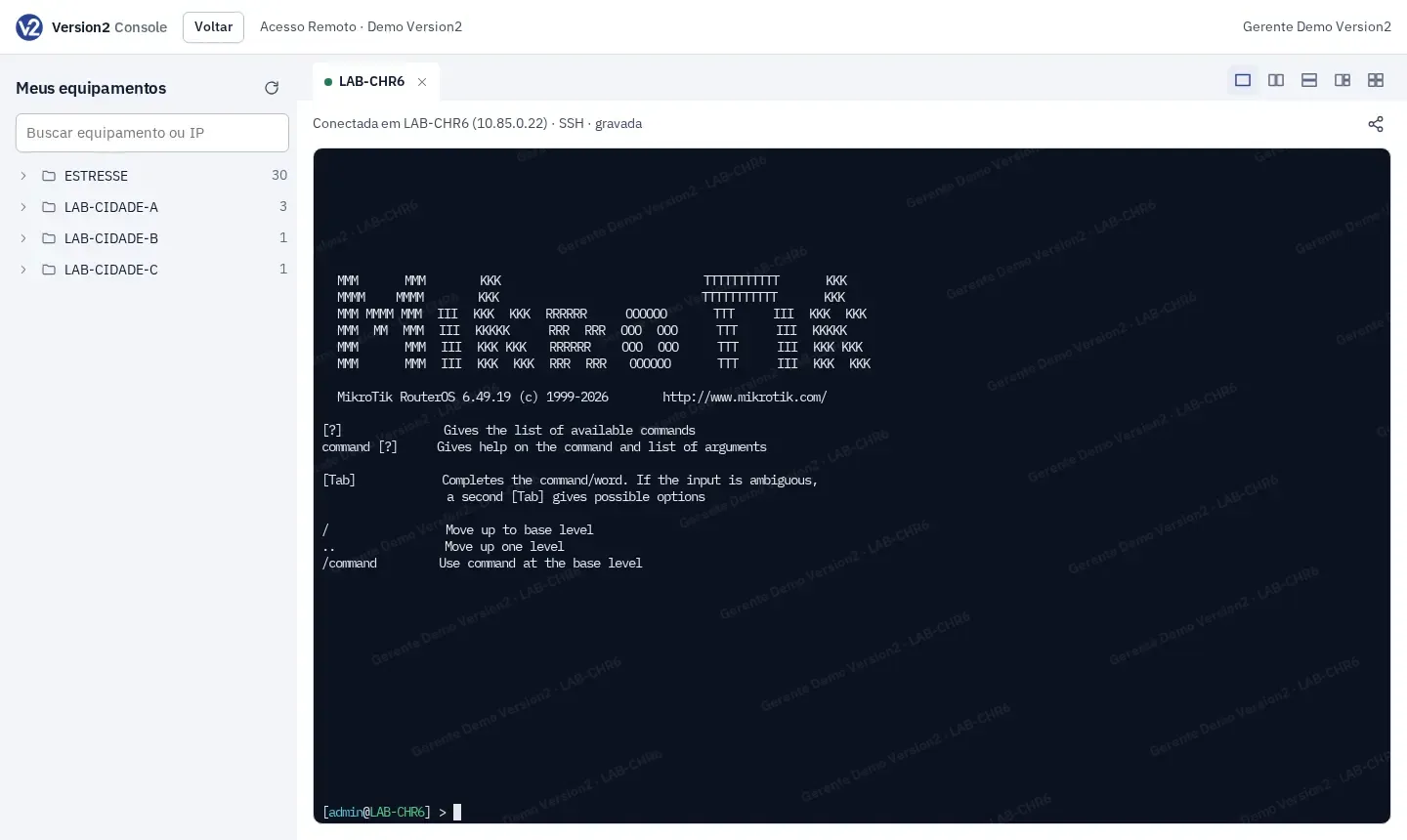
In the Acessar (Access) column, click the protocol button: SSH, Telnet, WinBox or RDP. The session opens in the Session console, in a tab of its own. If the console is already open in another browser tab, the new session goes there.
-
If the device has no saved credential (neither its own nor a default one), fill in Usuário do equipamento (Device username) and Senha (Password). In WinBox and RDP the fields are Usuário (Username) and Senha. If the policy asks for a code, fill in Código do verificador (Authenticator code) with the 6-digit code, which is asked for on every session. Click Conectar (Connect).
-
With a saved credential (the device’s own or the default credential inherited from the group or the account) and the automatic policy, the session logs in without asking for anything.
-
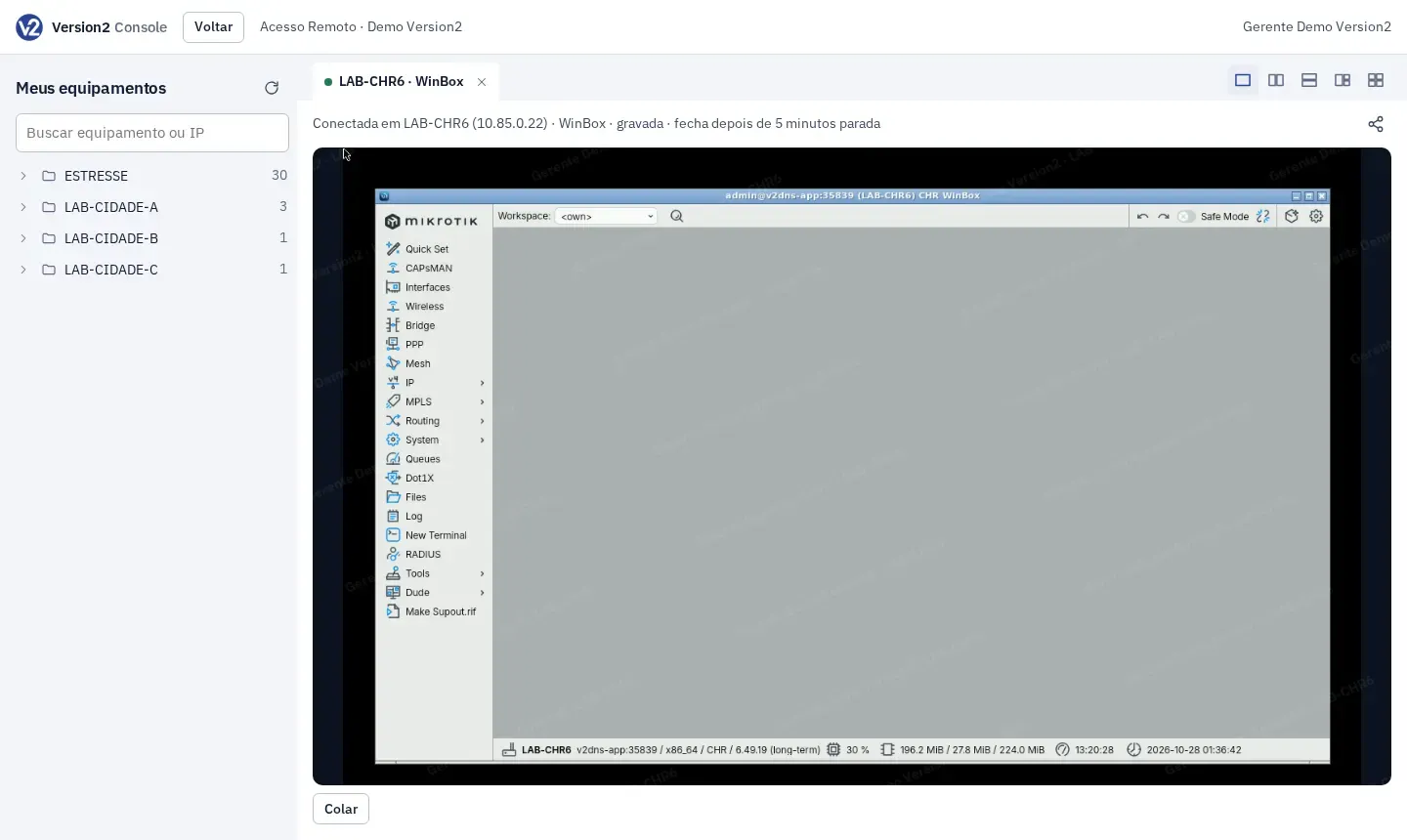
In WinBox and RDP, use Colar (Paste) to send text to the session clipboard, then press Ctrl+V inside the session. In RDP, Ctrl+Alt+Del sends that key combination.
-
To leave, click Encerrar (End). Voltar (Back), at the top of the console, takes you back to the device list.
Expected result
Section titled “Expected result”The session goes through the access proxy, with no port opened on your network. Every session is recorded. If it sits idle for the time shown at the top of Equipamentos, it closes on its own. The session shows up in Sessions and recordings.
If something goes wrong
Section titled “If something goes wrong”- “Você não tem permissão de … neste equipamento.” (You don’t have … permission on this device.) Ask the Manager for an access rule.
- “O proxy … deste equipamento está fora do ar.” (The proxy … for this device is down.) Check that the proxy server is powered on and has internet access, and check its status in Gestão da conta > Proxies (Account management > Proxies).
- “O proxy não alcançou o equipamento: …” (The proxy could not reach the device: …) Check the IP, the port and the route from the proxy server to the device.
- “Não foi possível entrar no equipamento: …” (Could not log in to the device: …) The device rejected the username or password. Check the credential on the device itself.
- “Código incorreto.” (Incorrect code.) Check the code in your authenticator and type it again.
- “Código já usado. Espere o próximo.” (Code already used. Wait for the next one.) Wait for your authenticator to show a new code.
- “No WinBox, usuário e senha não podem ter espaços.” (In WinBox, username and password cannot contain spaces.) Use a credential without spaces.
- With a command filter on, a line edited with the arrow keys or Tab is rejected. Type the whole command. See Command filters.
See also
Section titled “See also”- Default credential: log in without typing, using the credential inherited from the group or the account
- Access rules
- Command filters
- Sessions and recordings
- Session console: several sessions on one screen, in tabs and up to four panes
- WinBox on your computer: the WinBox installed on your computer, with a temporary user