
Accept an invitation
Activate your access to a customer with the invitation link.
Who can do it: the invited person, using the link they received. Invitations are sent by a Manager (see People and roles).
Step by step
Section titled “Step by step”-
Open the invitation link. It is valid for 72 hours and works once.
-
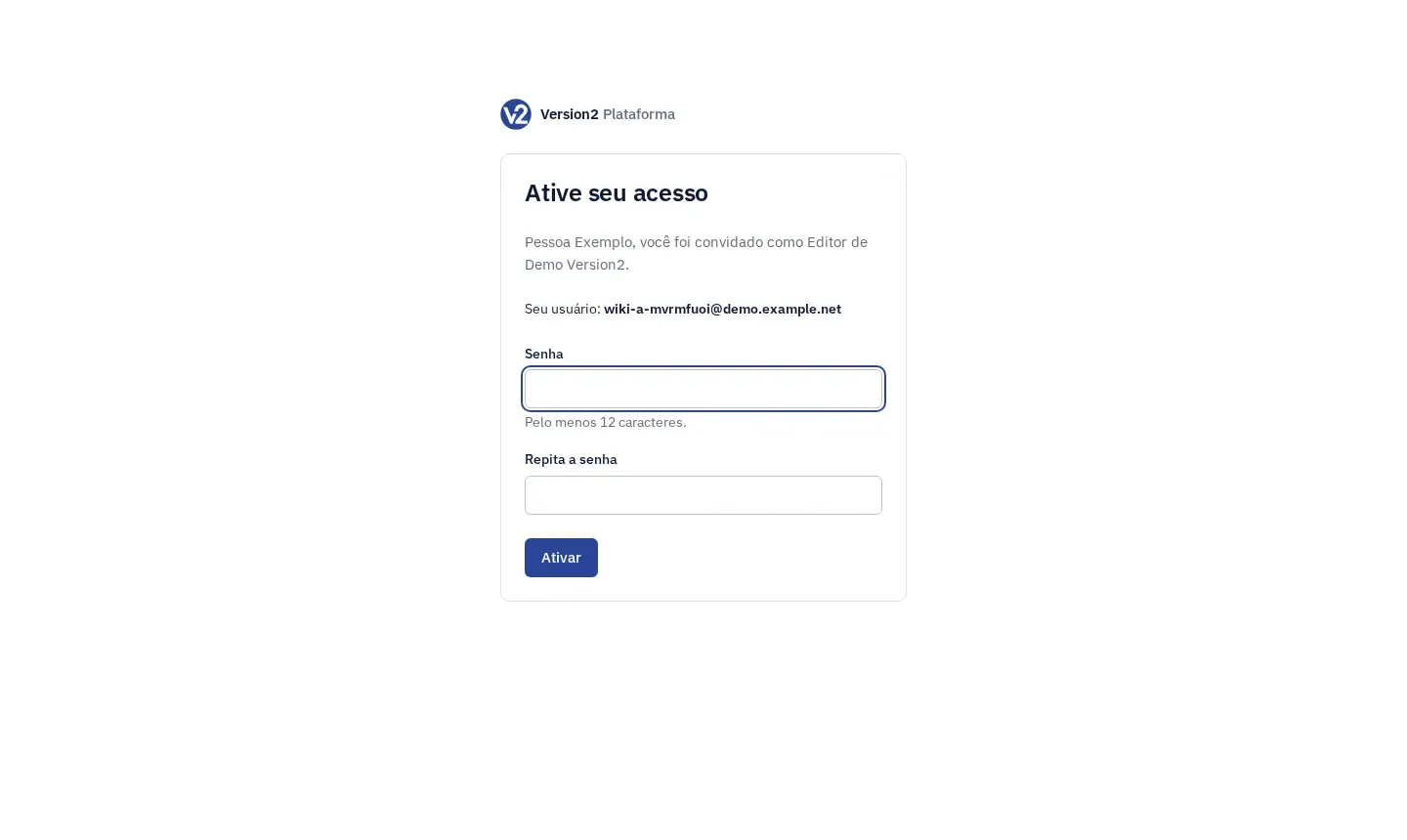
If you don’t have an account yet, the Ative seu acesso (Activate your access) screen shows your name, role, customer and username. Fill in Senha (Password) and Repita a senha (Repeat password), at least 12 characters, and click Ativar (Activate).
-
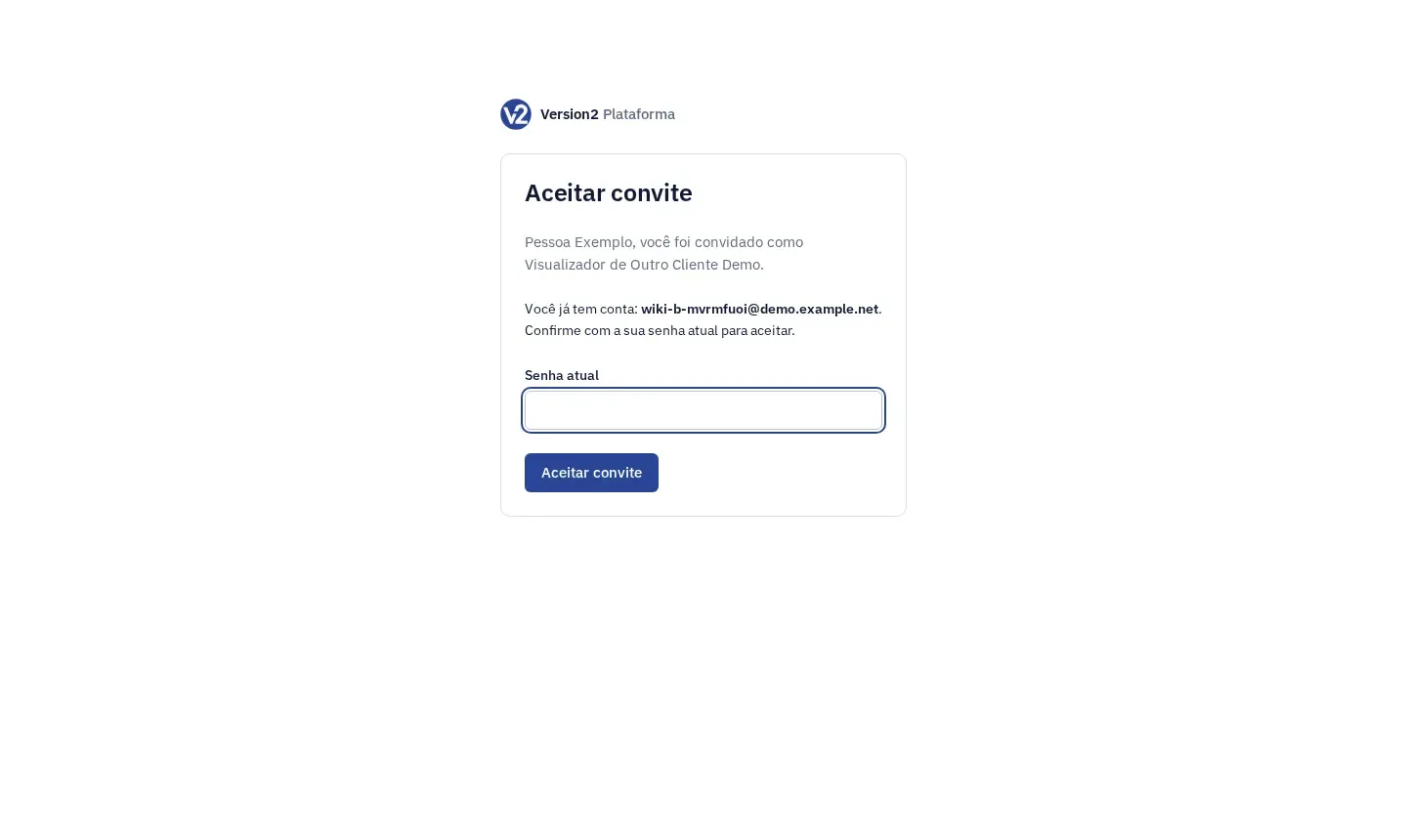
If you already have an account, the Aceitar convite (Accept invitation) screen shows your username. Fill in Senha atual (Current password) and click Aceitar convite. The invitation does not change your password.
-
On the Acesso ativado (Access activated) or Convite aceito (Invitation accepted) screen, click Entrar (Sign in) and sign in. With a new account, you set up the authenticator on this first sign-in.
Expected result
Section titled “Expected result”The customer now shows up for you, with the role from the invitation. If you already had other customers, switch between them with the selector at the top.
If something goes wrong
Section titled “If something goes wrong”- “Convite inválido ou vencido. Peça um novo a quem convidou você.” (Invalid or expired invitation. Ask the person who invited you for a new one.) The link is older than 72 hours or was already used. Ask the Manager for a new invitation.
- “Senha incorreta. Use a senha atual da sua conta.” (Wrong password. Use your account’s current password.) Type the password you already use to sign in to the panel.
- “A confirmação não confere.” (Confirmation doesn’t match.) Type the same password in both fields.