
Devices
Register the devices people reach from the browser.
Who can do this: people with View on Remote Access can see the list. The Manager, people with Total on Remote Access or Backup, and Remote Access managers can add, edit (one or several at once) and delete devices.
Step by step
Section titled “Step by step”-
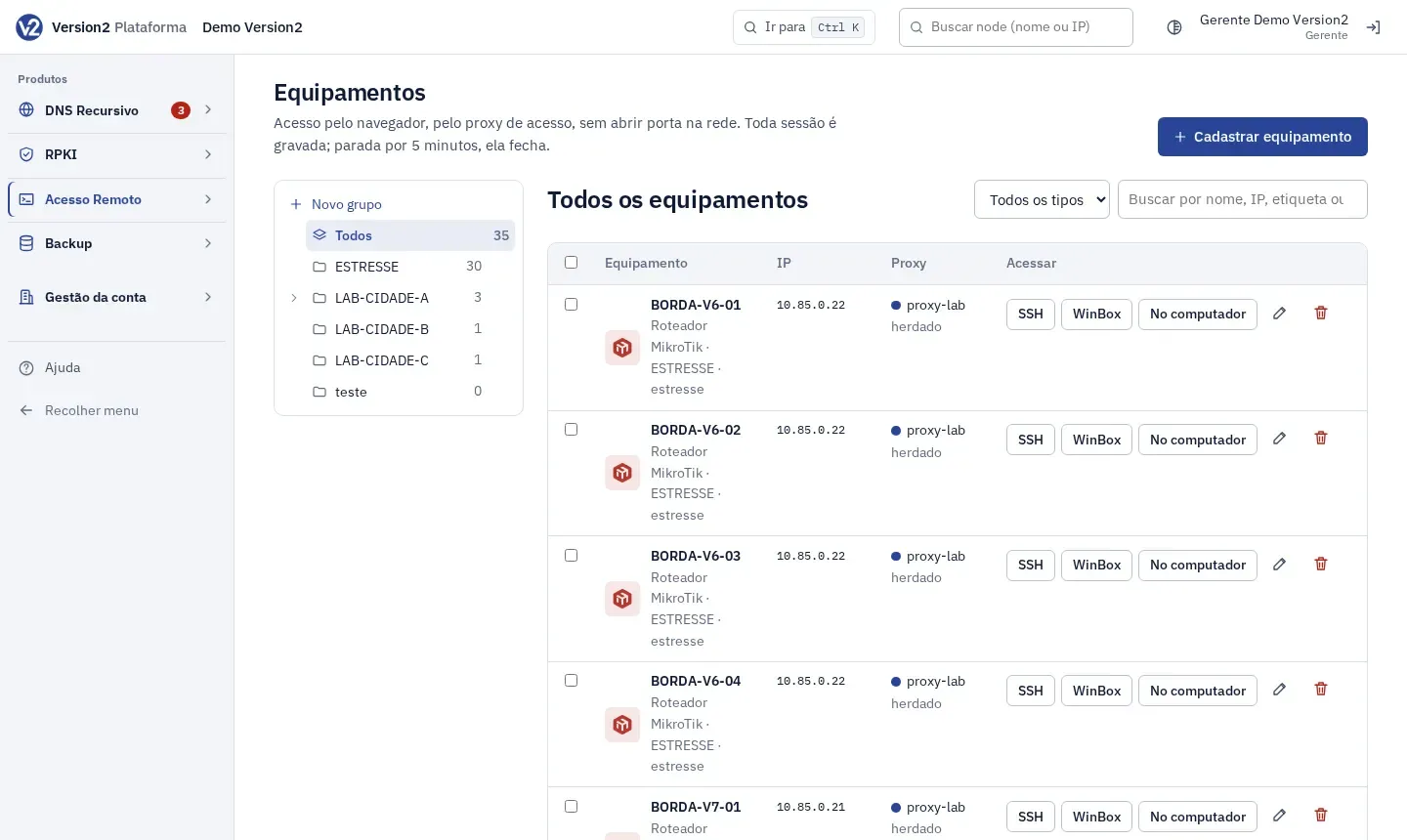
In the menu, open Produtos > Acesso Remoto > Equipamentos (Products > Remote Access > Devices). The group tree is on the left (Todos (All), the groups and Sem grupo (No group)). Above the table you have the type filter and the search box Buscar por nome, IP, etiqueta ou grupo (Search by name, IP, tag or group).
-
Click Cadastrar equipamento (Add device).
-
Pick the Tipo (Type): Servidor (Server), Roteador (Router) or Switch. Fill in Nome (Name, e.g. BNG-01), IP na rede do cliente (IP on the customer network, e.g. 192.0.2.1) and Fabricante (Vendor), or Sistema (System) for a server: MikroTik, Cisco, Juniper, Huawei, Outro (Other), Linux or Windows.
-
Under Protocolos e portas (Protocols and ports), check the protocols and adjust the port:
| Protocol | Default port | Applies to |
|---|---|---|
| SSH | 22 | All, Windows included |
| Telnet | 23 | Linux and network devices |
| WinBox | 8291 | MikroTik only |
| RDP | 3389 | Windows only |
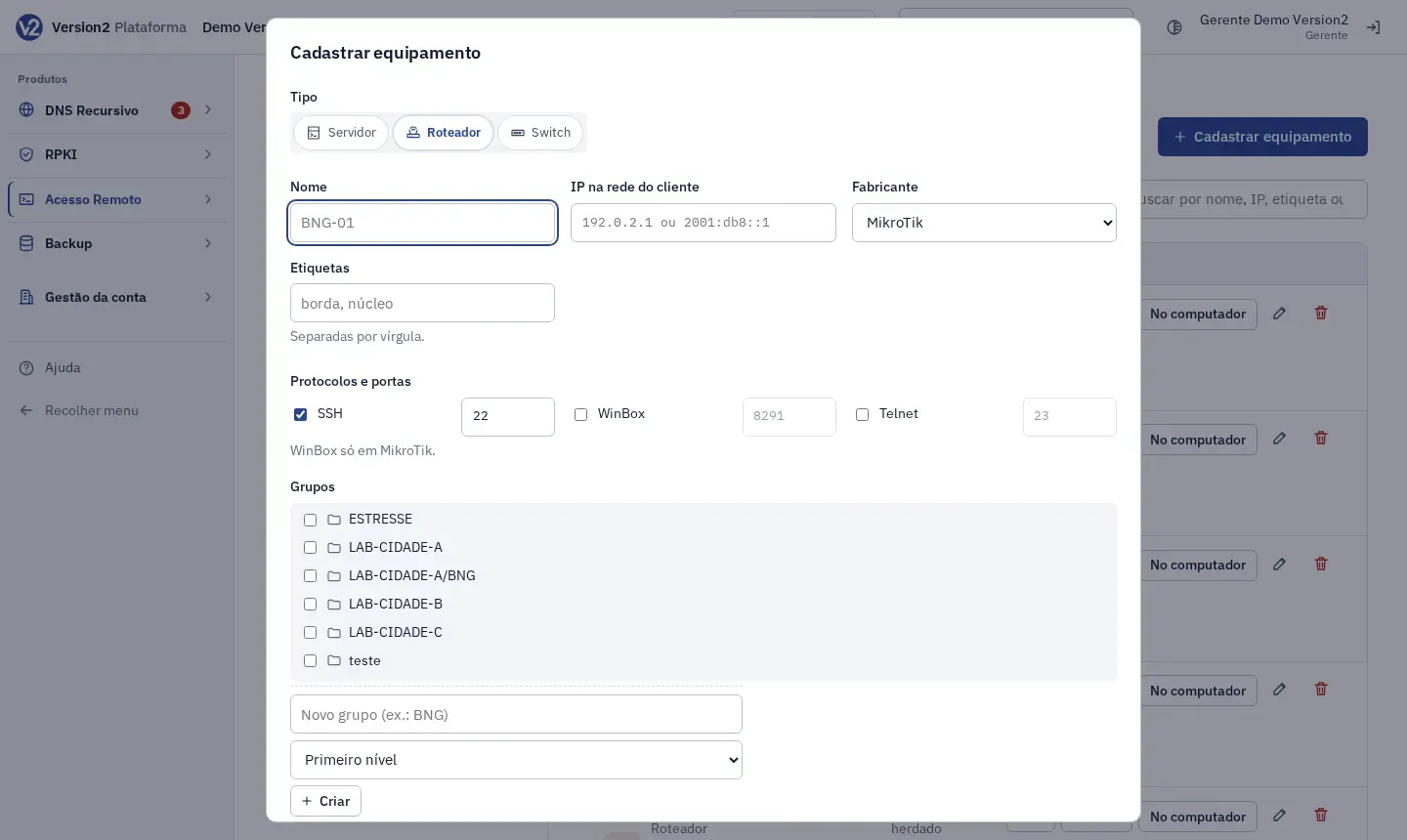
- Fill in Etiquetas (Tags, comma separated) and check the Grupos (Groups). A device can be in more than one. To create a group without leaving the dialog, use the Novo grupo (ex.: BNG) (New group) field, choose where it goes and click Criar (Create).
- Under Proxy de acesso (Access proxy), leave Herdar do grupo (ou o padrão) (Inherit from group, or the default) or pick a proxy. Inherit uses the proxy of the most specific group. If the group has no proxy, it uses the default one.
- Under Credencial (Credential), choose:
- Digitada na hora (nada guardado) (Typed each time, nothing stored): the device keeps no credential of its own. If there is a default credential (from the most specific group or the account), the device inherits it and the person logs in without typing; with none, the person types the username and password on every session. The dialog shows, right below, where the credential will come from.
- Salva: login automático (cifrada; a pessoa entra sem digitar) (Saved: automatic login): fill in Usuário (Username) and Senha (Password). The person logs in without typing anything, and the saved password is not shown on screen again. The device’s own credential takes priority over the default one.
- For routers and switches with SSH, check Backup de configuração (precisa de SSH e de credencial salva: a de acesso ou a do backup) (Configuration backup, needs SSH and a saved credential) if you want backups. It uses the saved access credential or, if you fill in Usuário do backup and Senha do backup (Backup user and password), that separate user (the password is encrypted and never shown again). See Devices and schedule.
- Click Salvar (Save).
Edit several at once
Section titled “Edit several at once”-
In the list, check the box of each device. The header box (on a phone, Selecionar todos os filtrados, Select all filtered) checks every device the search, the filter and the chosen group show, including those on other pages.
-
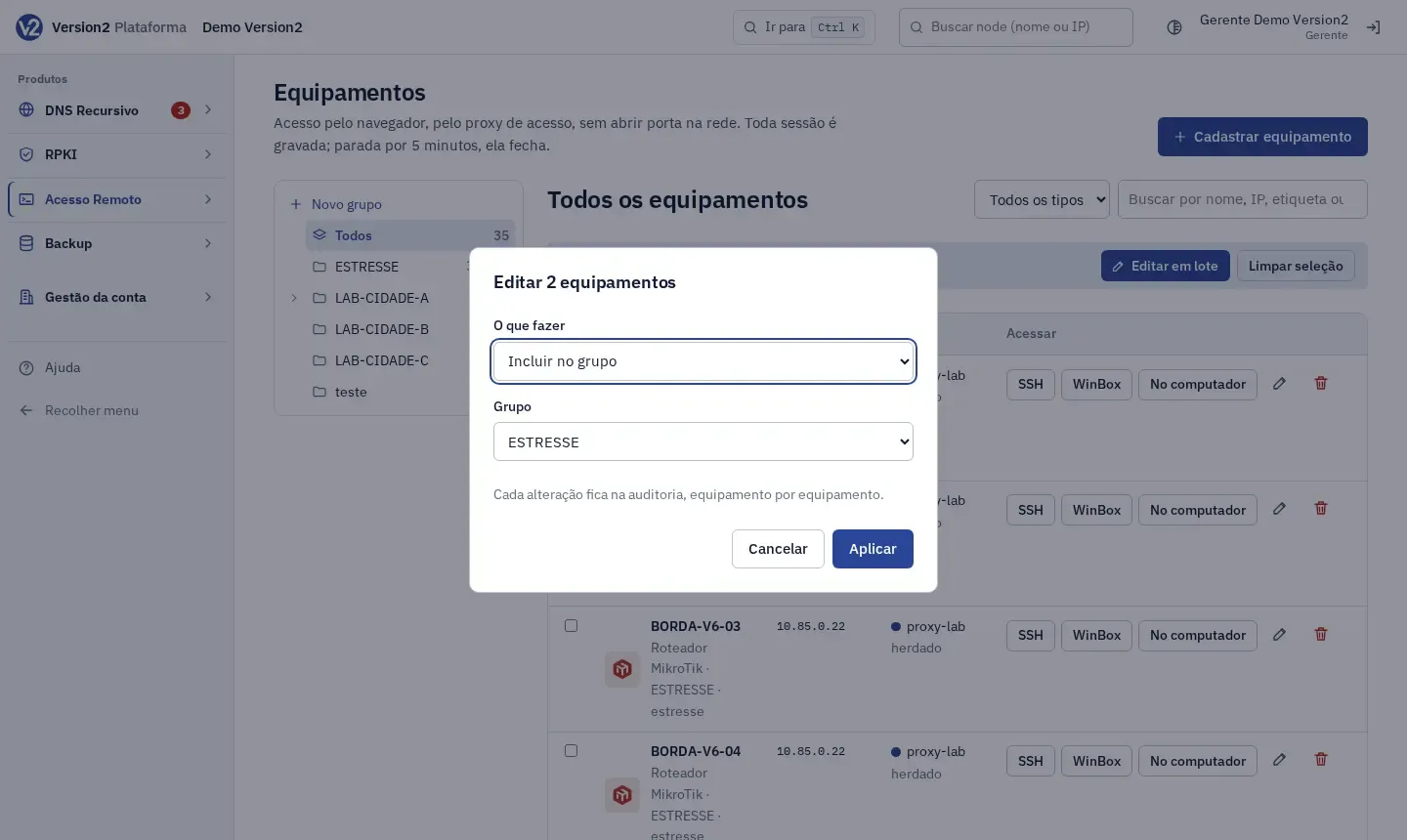
In the bar that appears above the table, click Editar em lote (Bulk edit).
-
In O que fazer (What to do), choose an action and click Aplicar (Apply):
- Incluir no grupo (Add to group), Tirar do grupo (Remove from group) or Mover para o grupo (sai dos outros) (Move to group, leaving the others): pick the group.
- Ligar o backup (Turn backup on) or Desligar o backup (Turn backup off).
- Trocar o proxy de acesso (Change the access proxy): pick the proxy or Herdar (do grupo ou o padrão) (Inherit from the group or the default).
- Usar a credencial padrão (grupo ou conta) (Use the default credential, group or account): removes the own credential of the selected devices, which then inherit the default credential (from the most specific group, otherwise the account one). With no default credential set, they start asking for a username and password on every session.
- Definir uma credencial salva (Set a saved credential): writes the same Usuário (Username) and Senha (Password, encrypted) to the selected devices, replacing whatever they had.
-
The summary shows how many were changed and, for each one that was not, its name and the reason. A device that fails does not stop the others. Each change goes to the audit log, device by device.
Ligar o backup only applies to routers or switches with SSH and a saved credential (the access one, the account default, or the backup one). Devices that don’t qualify show up in the summary and are left unchanged.
Expected result
Section titled “Expected result”You see “Equipamento cadastrado. O proxy recebe a lista nova em até 10 s.” (Device added. The proxy receives the new list within 10 s.) The Proxy column shows the proxy in use, marked “herdado” (inherited) when it comes from the group or the default. The Acessar (Access) column shows one button per protocol.
If you delete a device, it leaves the proxy list. Session recordings stay available.
If something goes wrong
Section titled “If something goes wrong”- “Nome do equipamento com até 64 caracteres, por exemplo BORDA-01.” (Device name up to 64 characters, for example BORDA-01.) Shorten the name.
- “Já existe um equipamento com esse nome.” (A device with this name already exists.) Pick another name.
- “IP do equipamento na rede do cliente (IPv4 ou IPv6), sem máscara.” (Device IP on the customer network, IPv4 or IPv6, without mask.) Remove the mask, for example
/24. - “Informe a porta de pelo menos um protocolo.” (Enter the port for at least one protocol.) Check a protocol and fill in its port.
- “Informe a senha da credencial salva. Ao trocar o usuário, a senha também precisa ser digitada.” (Enter the password for the saved credential. When you change the user, the password must be typed too.) Fill in Senha or switch to a typed credential. When Usuário changes, the saved password belonged to the previous user and does not work for the new one: type the new user’s password.
- “Até 32 etiquetas, cada uma com até 64 caracteres.” (Up to 32 tags, each up to 64 characters.) or “Até 64 grupos por equipamento.” (Up to 64 groups per device.) Reduce the tags or groups.
- “Este equipamento não tem proxy de acesso: escolha um no equipamento ou no grupo, ou marque um proxy como padrão.” (This device has no access proxy: pick one on the device or the group, or set a proxy as default.) Do one of those three things and save again.
See also
Section titled “See also”- Default credential: the account and per-group credential a device inherits
- Access via SSH, Telnet, WinBox and RDP
- Access rules
- Install the proxy