
Two-step verification
Set up two-step verification and recover it by email if you lose the app.
Who can do it: everyone. Two-step verification is required. Without it, you can’t get past the setup screen.
Step by step
Section titled “Step by step”Set up the authenticator
Section titled “Set up the authenticator”-
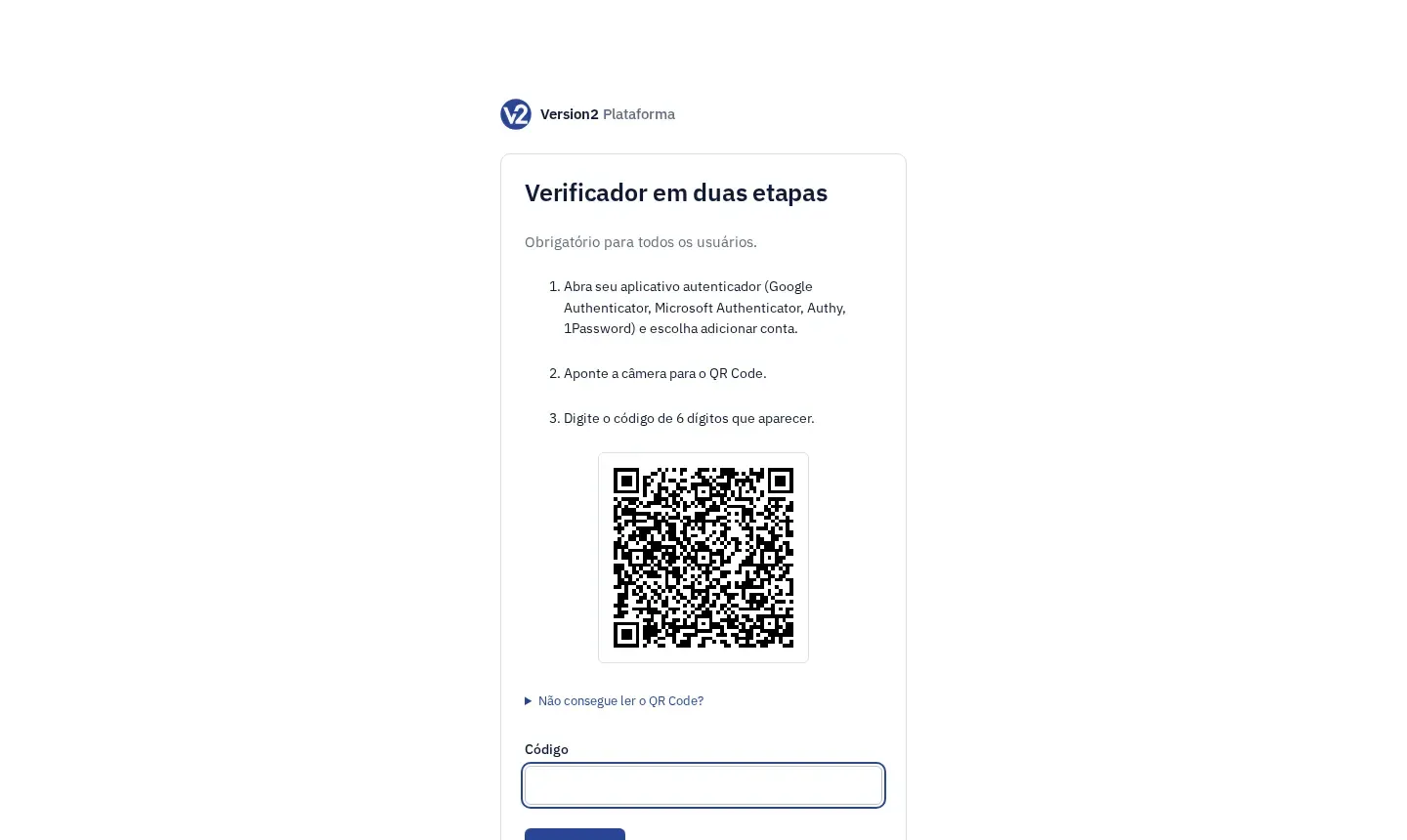
After the password, the panel opens the Verificador em duas etapas (Two-step verification) screen. This happens only the first time or after a recovery.
-
Open the authenticator app on your phone (Google Authenticator, Microsoft Authenticator, Authy or 1Password) and choose to add an account.
-
Point the camera at the QR Code. If it won’t scan, open Não consegue ler o QR Code? (Can’t scan the QR Code?) and type the key into the app (time-based type). On a phone, use the link to open it straight in the app.
-
Type the 6 digits shown by the app in Código (Code) and click Confirmar (Confirm).
Recover the authenticator by email
Section titled “Recover the authenticator by email”There are no recovery codes. If you lose the authenticator, you get a link at your account email.
-
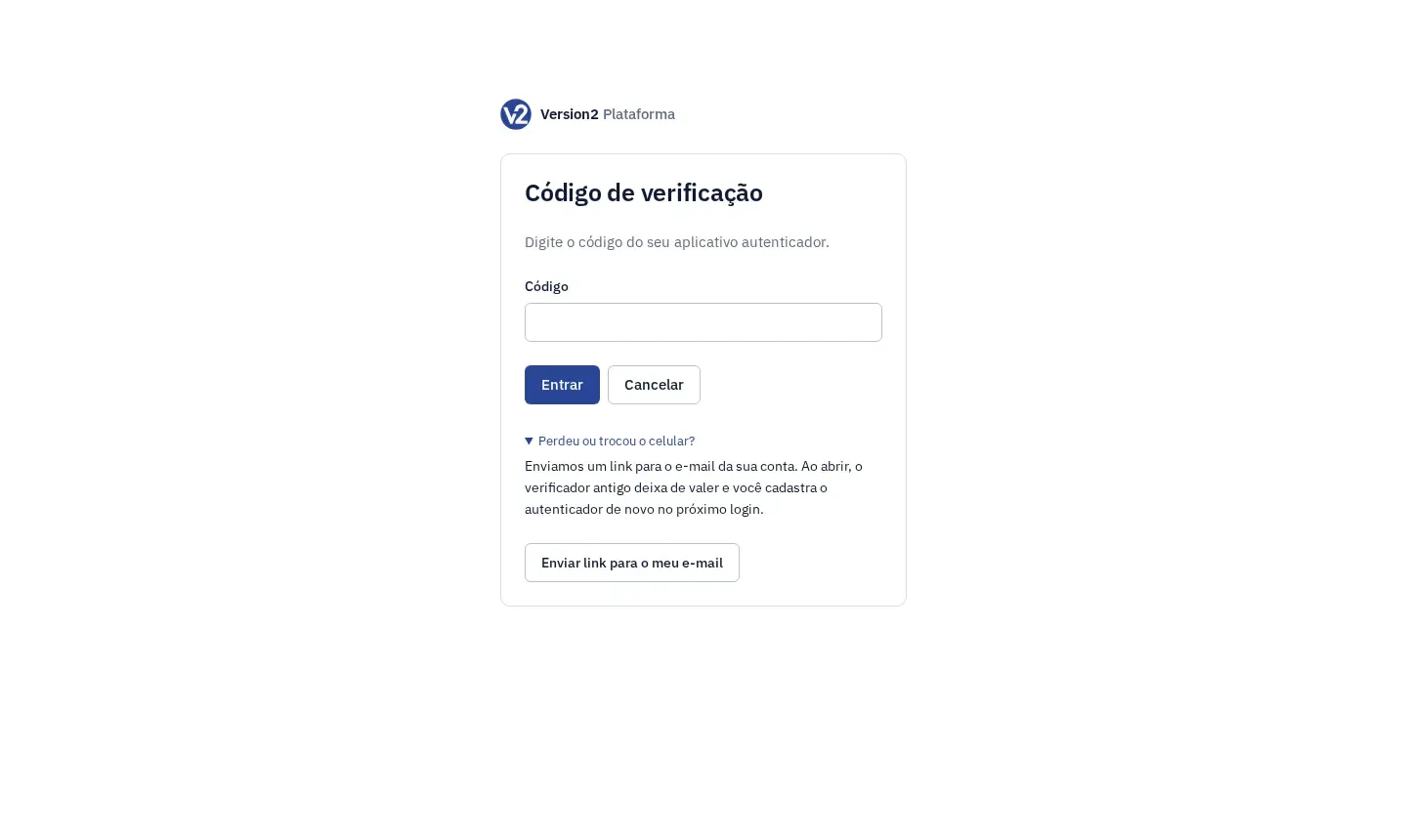
Sign in with your password. On the Código de verificação (Verification code) screen, open Perdeu ou trocou o celular? (Lost or changed your phone?) and click Enviar link para o meu e-mail (Send link to my email).
-
Open the link in the email. It is valid for 30 minutes and works once.
-
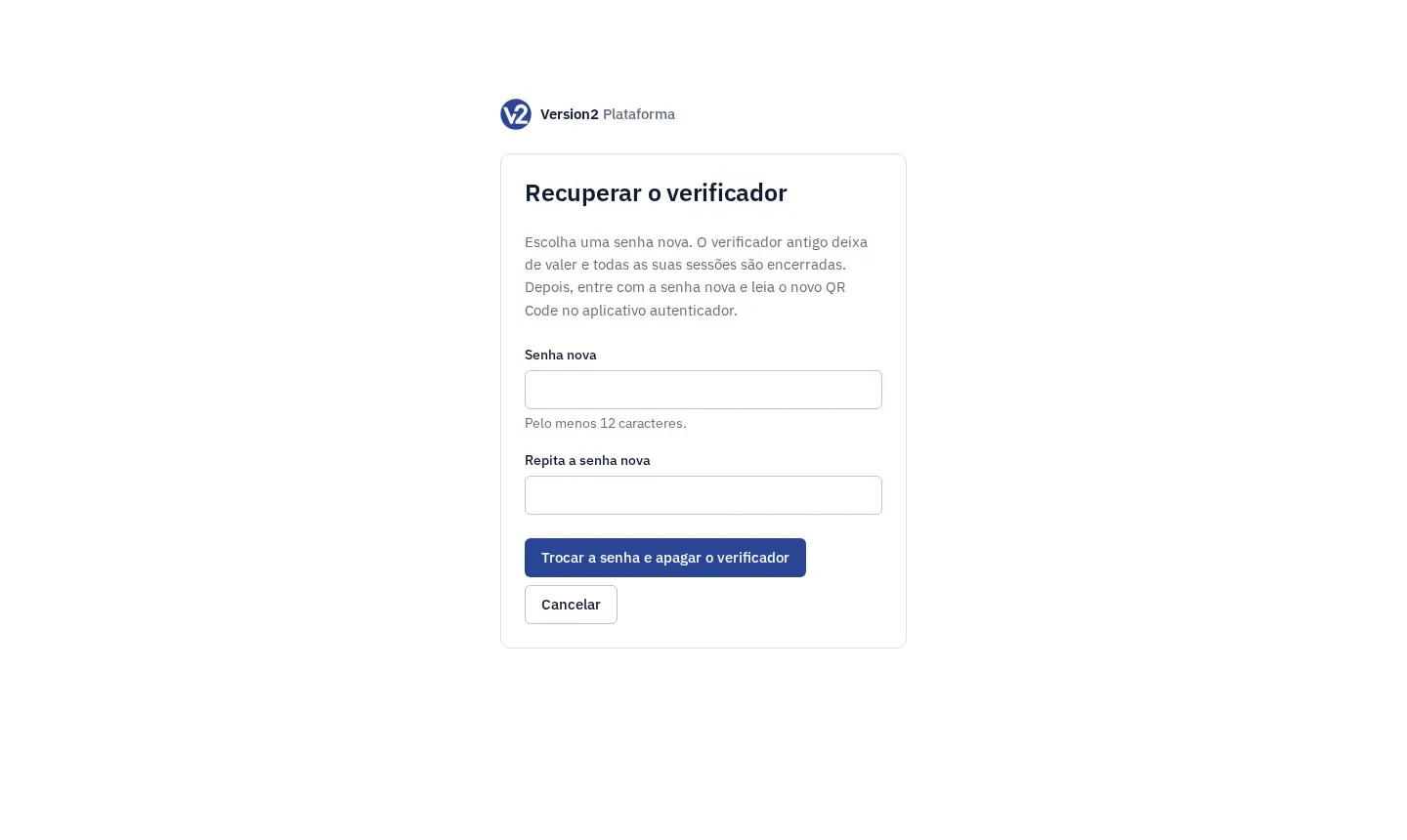
On the Recuperar o verificador (Recover the authenticator) screen, fill in Senha nova (New password) and Repita a senha nova (Repeat new password) and click Trocar a senha e apagar o verificador (Change password and remove the authenticator). Recovery also changes your password.
-
On the Verificador recuperado (Authenticator recovered) screen, click Entrar (Sign in). Sign in with the new password and set up the authenticator again with the QR Code.
Expected result
Section titled “Expected result”After setup, the notice “Verificador cadastrado.” (Authenticator set up.) shows and the panel opens. After a recovery, the old authenticator stops working and you need to sign in again everywhere you were signed in.
If something goes wrong
Section titled “If something goes wrong”- “Código incorreto. Confira o horário do celular e tente o código atual.” (Wrong code. Check your phone’s time and try the current code.) Set your phone clock correctly and type the code shown now.
- “Comece o cadastro do verificador de novo.” (Start the authenticator setup again.) Reload the page to get a new QR Code.
- “Sua conta não tem e-mail cadastrado.” (Your account has no registered email.) or “Por segurança, este verificador só pode ser redefinido pela equipe da Version2.” (For security, this authenticator can only be reset by the Version2 team.) Contact [email protected]. The team resets the authenticator, you get an email and set it up again at your next sign-in.
- “Este link não vale mais (já foi usado ou passou de 30 minutos). Entre de novo e peça outro.” (This link is no longer valid: already used or older than 30 minutes. Sign in again and request another.) Sign in with your password and request a new link.
- “As duas senhas não são iguais.” (The two passwords don’t match.) Type the same password in both fields.
- The email didn’t arrive: check your spam folder.