
Customer settings
Adjust alert thresholds, incident notices, change approval and the Recursive DNS terminal access rule.
Who can do it: anyone with Total (Full) on Gestão da conta (Account management) and access to Recursive DNS. In the default roles, that’s the Manager.
Step by step
Section titled “Step by step”-
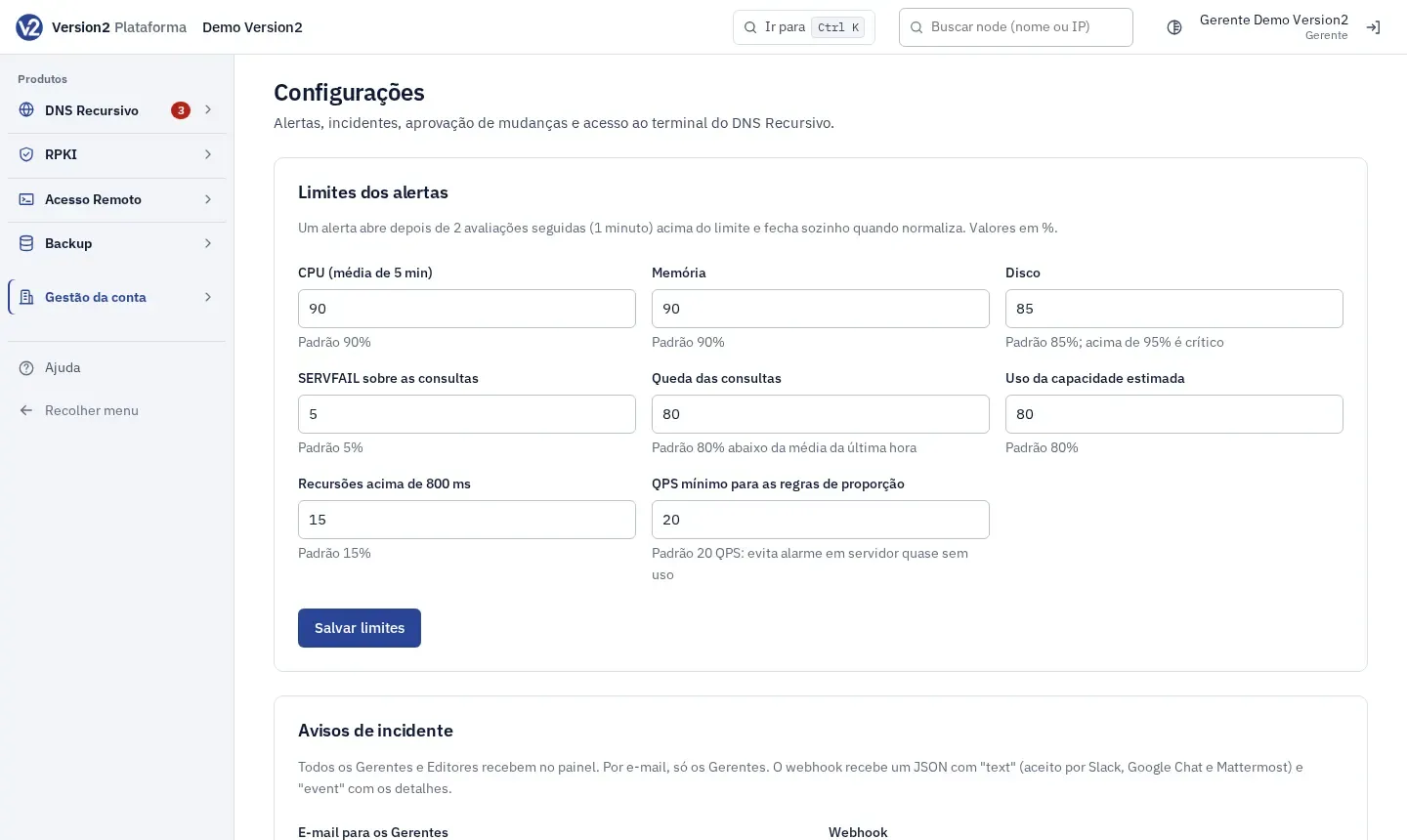
In the menu, open Gestão da conta (Account management) and click Configurações (Settings).
-
Under Limites dos alertas (Alert thresholds), set the values in %: CPU (média de 5 min) (CPU, 5 min average), Memória (Memory), Disco (Disk), SERVFAIL sobre as consultas (SERVFAIL over queries), Queda das consultas (Query drop), Uso da capacidade estimada (Estimated capacity use), Recursões acima de 800 ms (Recursions above 800 ms) and QPS mínimo para as regras de proporção (Minimum QPS for ratio rules). Each field shows its default value. Click Salvar limites (Save thresholds).
-
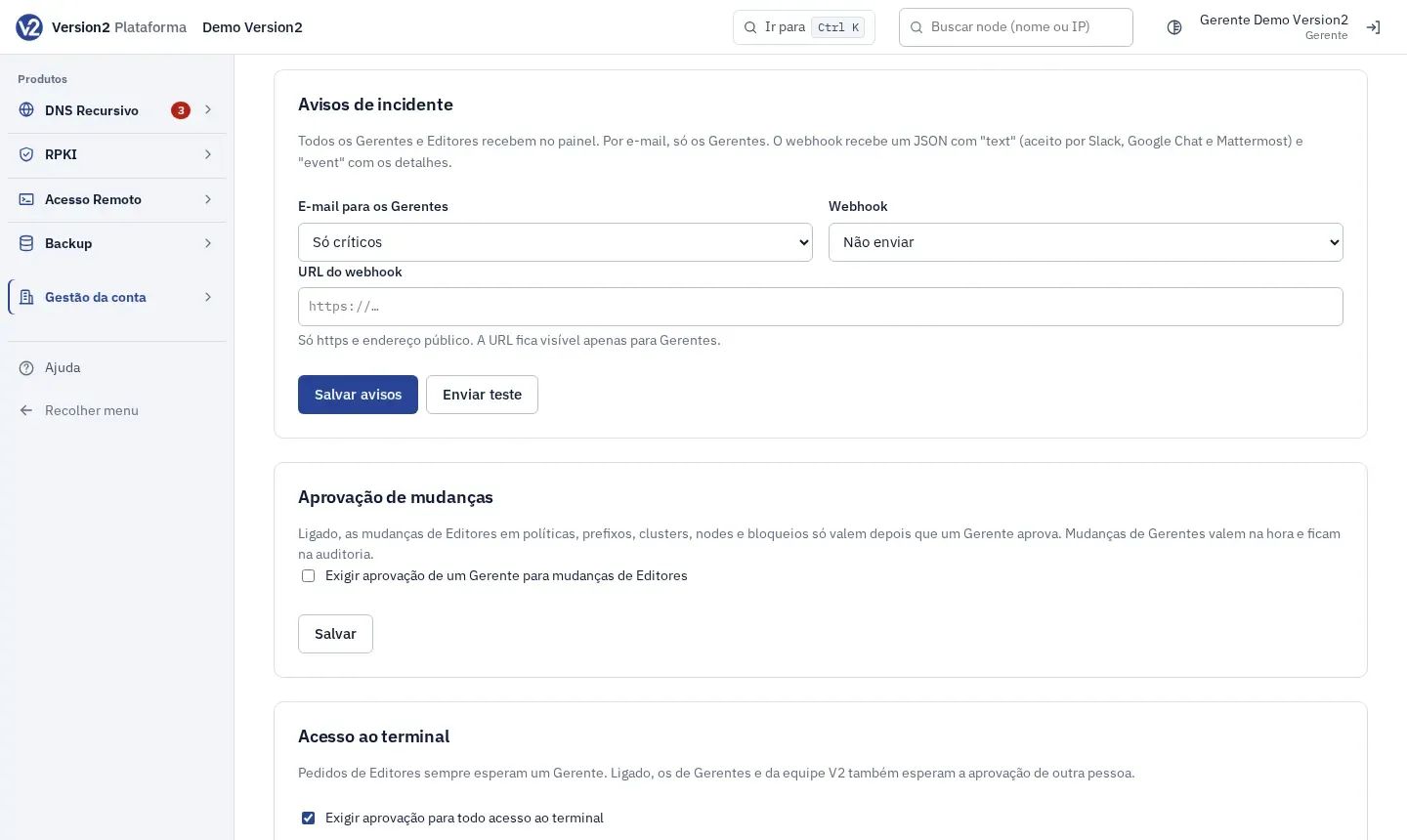
Under Avisos de incidente (Incident notices), choose E-mail para os Gerentes (Email to Managers) and Webhook (Só críticos (Critical only), Críticos e atenção (Critical and warning) or Não enviar (Don’t send)), fill in URL do webhook (Webhook URL) and click Salvar avisos (Save notices). Then click Enviar teste (Send test).
-
Under Aprovação de mudanças (Change approval), check Exigir aprovação de um Gerente para mudanças de Editores (Require a Manager’s approval for Editor changes) and click Salvar (Save). See Approvals.
-
Under Acesso ao terminal (Terminal access), check Exigir aprovação para todo acesso ao terminal (Require approval for every terminal access) and click Salvar. With this on, requests from Managers also wait for another person to approve.
Expected result
Section titled “Expected result”New thresholds take effect within moments. An alert opens after 1 minute above the threshold and closes by itself when the value goes back to normal. The webhook receives JSON with “text” (accepted by Slack, Google Chat and Mattermost) and “event”.
If something goes wrong
Section titled “If something goes wrong”- “Valor fora da faixa.” (Value out of range.) Check the number you typed in the field.
- “Use uma URL https completa.” (Use a full https URL.) or “Informe a URL do webhook.” (Enter the webhook URL.) Enter the full URL, starting with https://.
- “Salve a URL do webhook antes de testar.” (Save the webhook URL before testing.) Click Salvar avisos, then Enviar teste.
- “O webhook não aceitou: endereço não permitido (use uma URL https com endereço público).” (The webhook was not accepted: address not allowed, use an https URL with a public address.) Use an https URL with a public address.
- “O webhook não respondeu com sucesso.” (The webhook did not respond successfully.) Check that your service accepts POST with JSON.