Session console
Work on several devices at once on a single screen: each session lives in a tab, up to four are shown side by side, and you switch tabs without dropping any of them.
Who can do this: the same people who can reach the device (see Access rules).
Open sessions
Section titled “Open sessions”-
In Equipamentos (Acesso Remoto) or on the device page in Backup, click SSH, Telnet, WinBox or RDP. The console opens with the session in a tab. If the console is already open in another browser tab, the new session goes there. You can also open the console from the Acesso Remoto > Console de sessões menu.
-
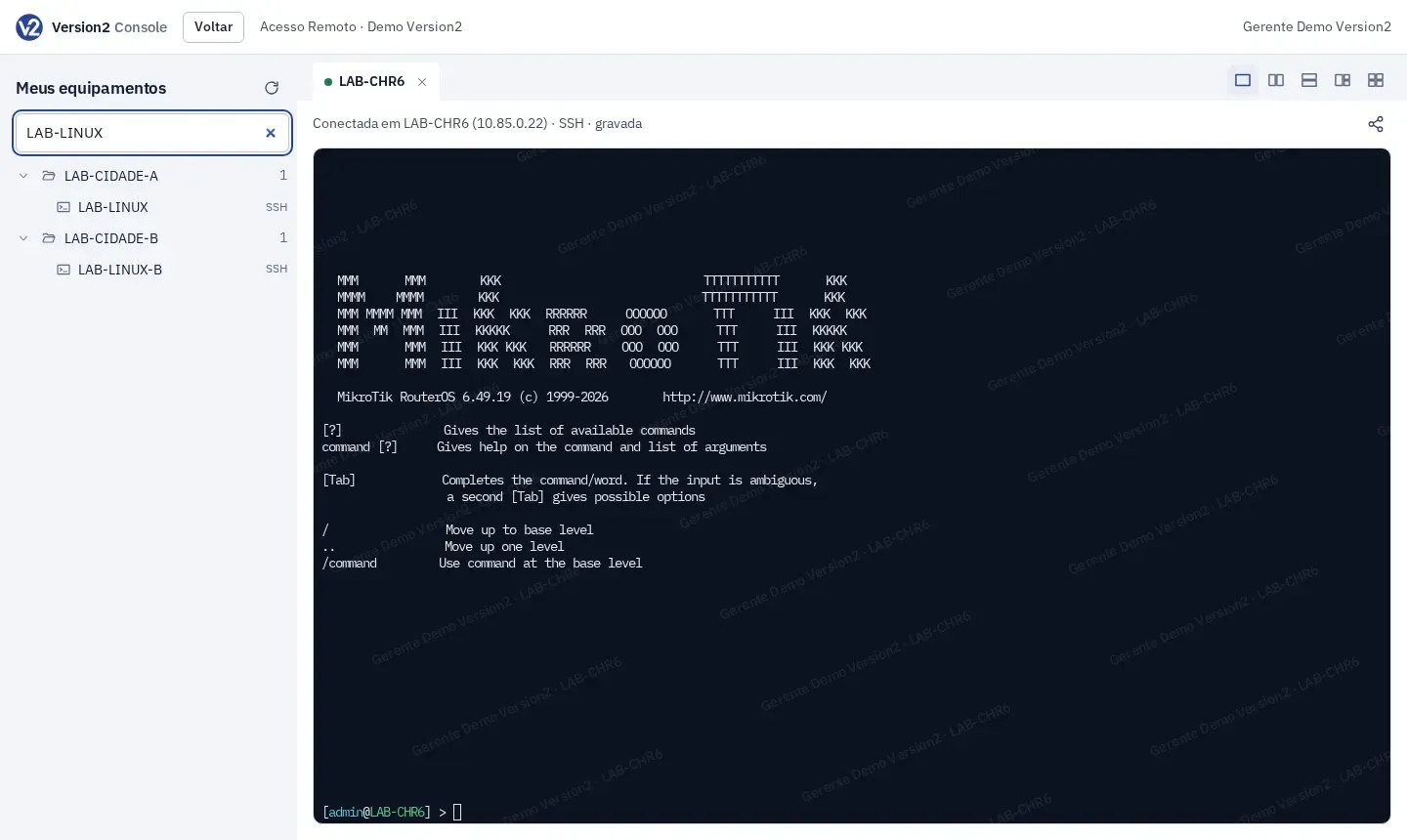
On the left is the Meus equipamentos list, organized by groups. Groups start closed; click a group to open it. The number next to each group is how many devices it holds.
-
To find a device, type its name or IP in the search box. The list shows only the path to what was found.
-
Click the device to open it with its first protocol. For another protocol, click its name next to the device (Telnet, WinBox, RDP).
-
If the credential is typed, or the policy asks for an authenticator code, fill in the fields inside the tab and click Conectar.
-
Click the same device again to open another session on it. Tabs carry the device name and a number: BORDA-01, BORDA-01 (2).
Split the screen
Section titled “Split the screen”-
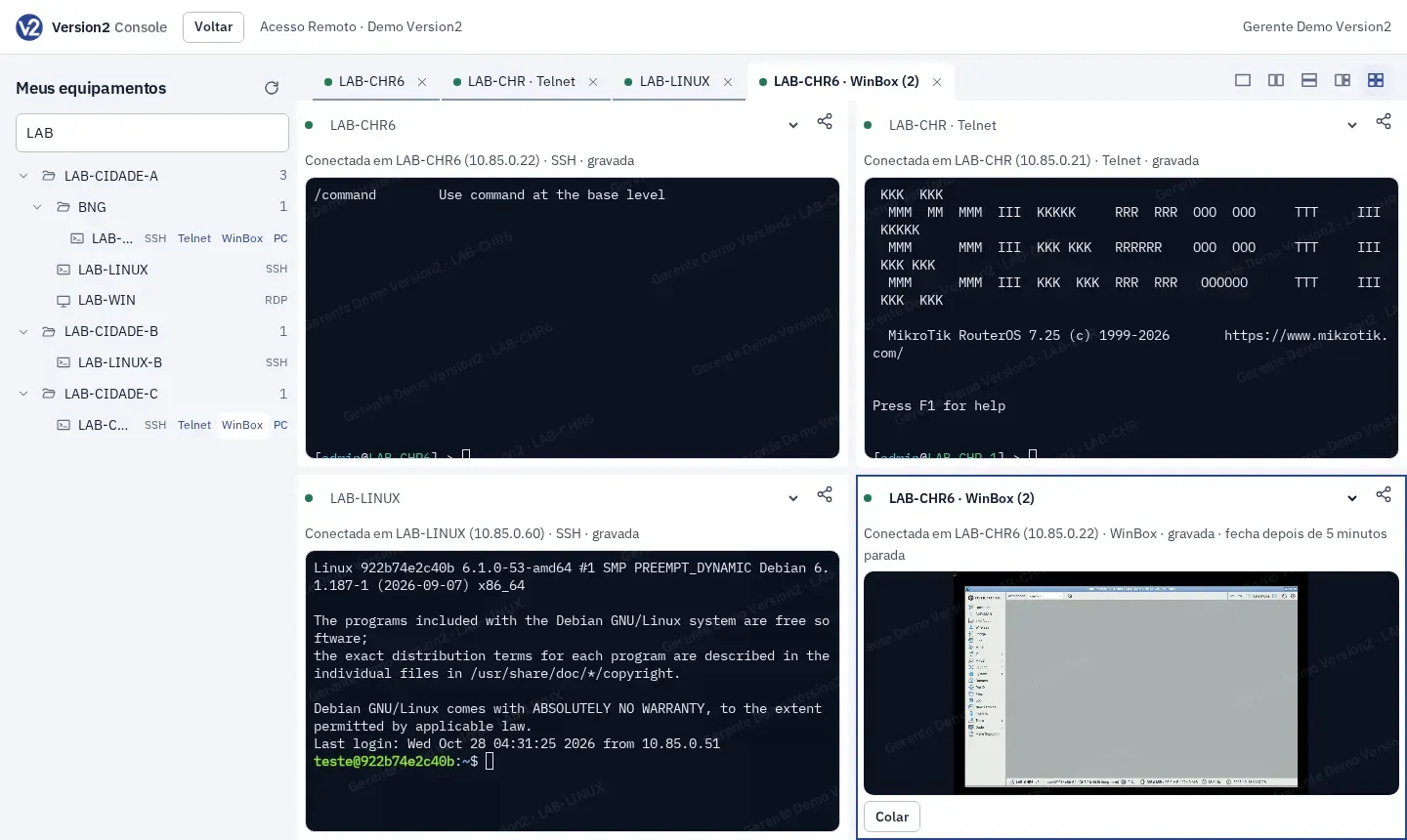
Next to the tabs, pick the split: one pane, two side by side, two stacked, one large and two, or four (2 × 2).
-
Each pane shows one session. To change a pane’s session, drag the tab onto it or pick the session in the menu at the top of the pane. If that session was already in another pane, the two swap places.
-
The pane with the blue border is the one that gets the keyboard. Click a pane to type in it.
-
Drag the strip between panes to resize them. With the strip selected using Tab, the arrow keys resize too; a double click puts it back in the middle.
-
A new session goes to the first empty pane; with no empty pane, it goes to the pane with the blue border.
The split and pane sizes are kept in this browser. With nothing saved, the console opens with a single pane. On a phone the screen shows a single pane: switch sessions with the tabs.
Switch and close
Section titled “Switch and close”- To switch tabs, click one or press Ctrl + Shift + Left arrow or Right arrow. To switch panes, Ctrl + Shift + Up arrow or Down arrow.
- Sessions that are not in any pane stay connected and keep receiving output, as tabs in the background.
- To close a session, click the tab’s ×. If the session is still connected, the console asks you to confirm.
- Voltar (Back), at the top, takes you back to Acesso Remoto.
In WinBox and RDP, the device’s screen is shown inside the pane, scaled down to fit. In RDP, the desktop adapts to the pane size. Colar (Paste) sends text to the session clipboard (then use Ctrl+V inside it) and Ctrl+Alt+Del sends that combination in RDP.
On wide screens, the Recolher a lista de equipamentos (Collapse the device list) button hides the Meus equipamentos (My devices) bar and gives all the space to the sessions; Mostrar a lista de equipamentos (Show the device list) brings the bar back. On a phone or a narrow screen, the device list is already hidden: tap Equipamentos at the top to open it.
Expected result
Section titled “Expected result”Each tab is a separate session, recorded like any other and listed in Sessions and recordings. Each pane shows your name and the device name faintly over the screen.
The dot on the tab and at the top of the pane shows its state: green connected, grey connecting, red ended.
If something goes wrong
Section titled “If something goes wrong”- The device is not in the list. You only see what an access rule allows. Ask the Manager.
- I typed and nothing showed up. The keyboard goes to the pane with the blue border. Click the right pane.
- “Código já usado. Espere o próximo.” When opening two sessions in a row on a device that asks for a code, wait for a new code in the authenticator for the second one.
- The WinBox screen is small. WinBox has a fixed size and shrinks to fit the pane. Make the pane bigger with the strip or use the one-pane split.
- I closed the browser window. The browser asks first; if you confirm, the console sessions are ended.
- The messages in Access via SSH, Telnet, WinBox and RDP apply here too.