
Sign in to the panel
Sign in to the Version2 Platform panel with your password and the two-step verification code.
Who can do it: anyone with an active account on the platform.
Step by step
Section titled “Step by step”-
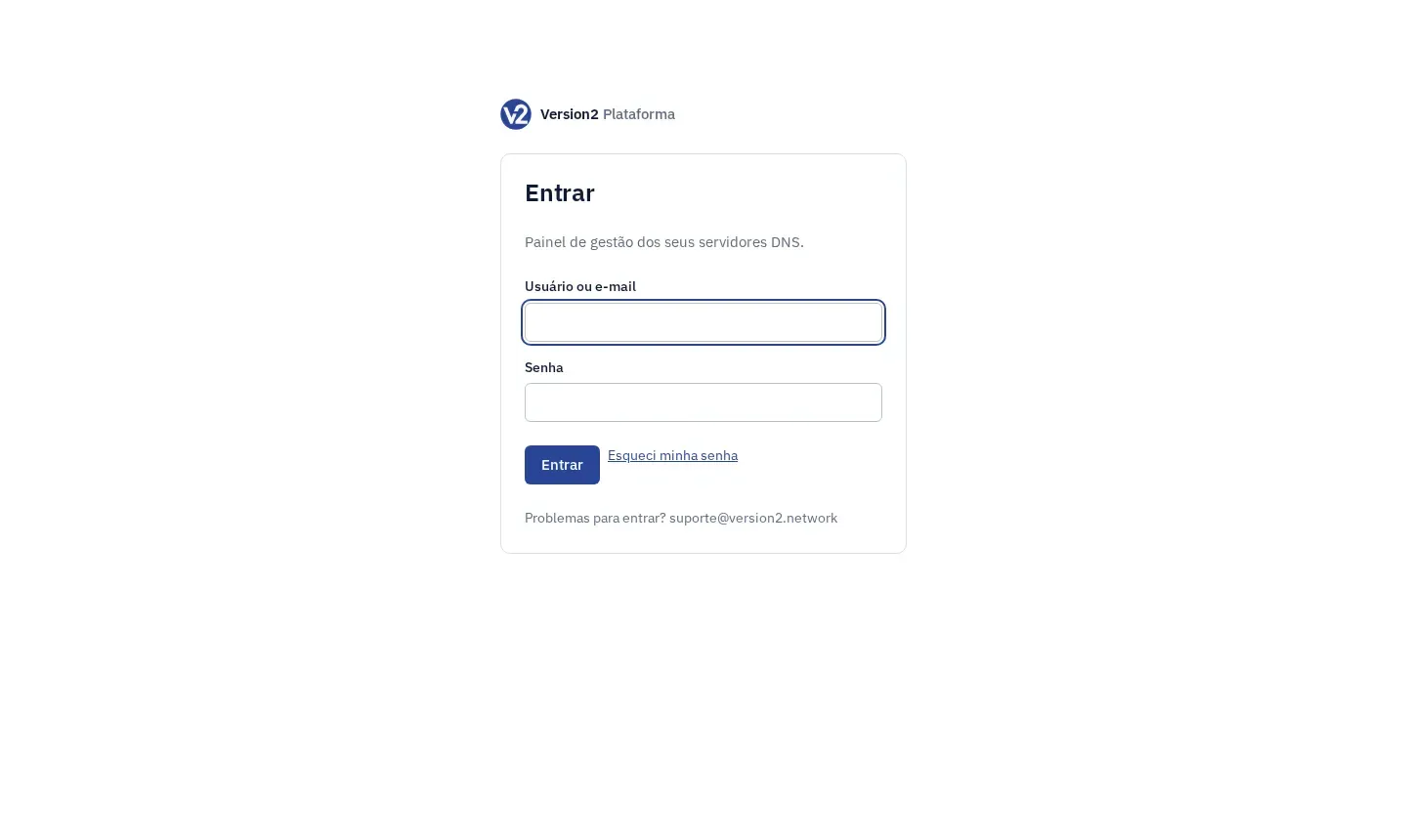
Open the panel address. The Entrar (Sign in) screen shows up.
-
Fill in Usuário ou e-mail (Username or email) and Senha (Password) and click Entrar.
-
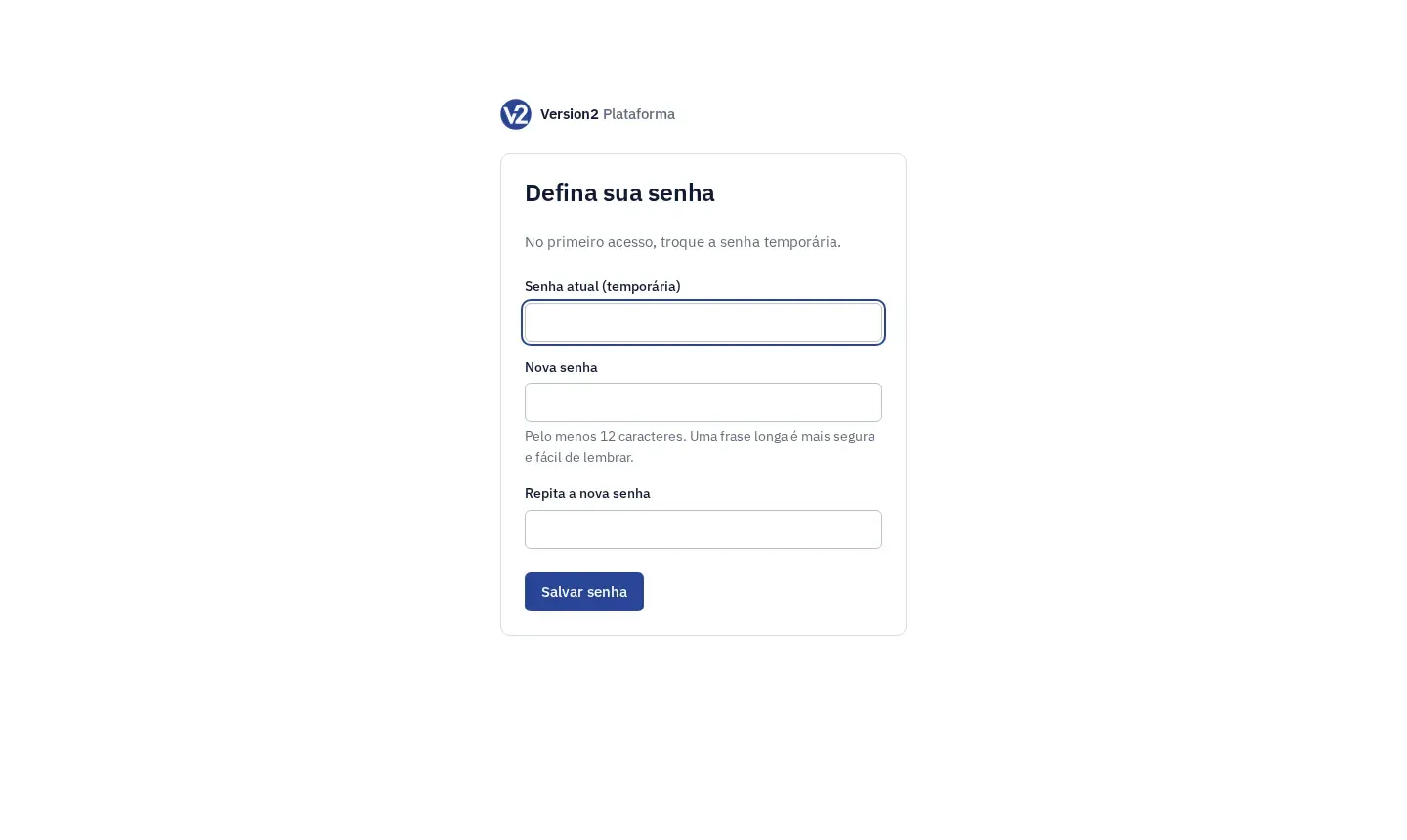
On your first sign-in, the panel opens the Defina sua senha (Set your password) screen. Fill in Senha atual (temporária) (Current password, temporary), Nova senha (New password) and Repita a nova senha (Repeat new password), and click Salvar senha (Save password). The new password needs at least 12 characters.
-
If the account has no authenticator yet, the panel opens the Verificador em duas etapas (Two-step verification) screen. Follow the Two-step verification guide.
-
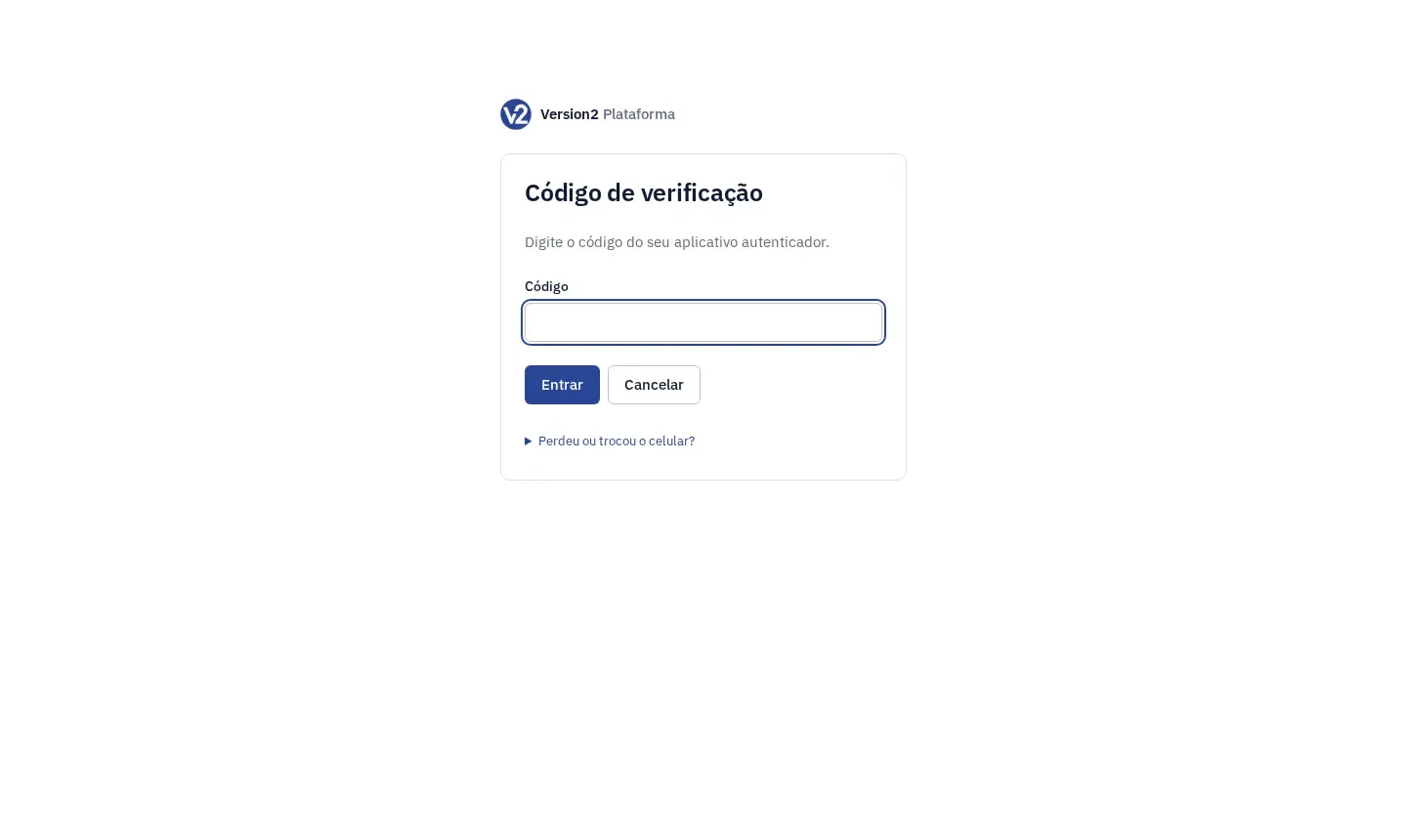
With the authenticator already set up, the Código de verificação (Verification code) screen shows up. Type the 6 digits from the authenticator app in Código (Code) and click Entrar. Cancelar (Cancel) takes you back to sign-in.
-
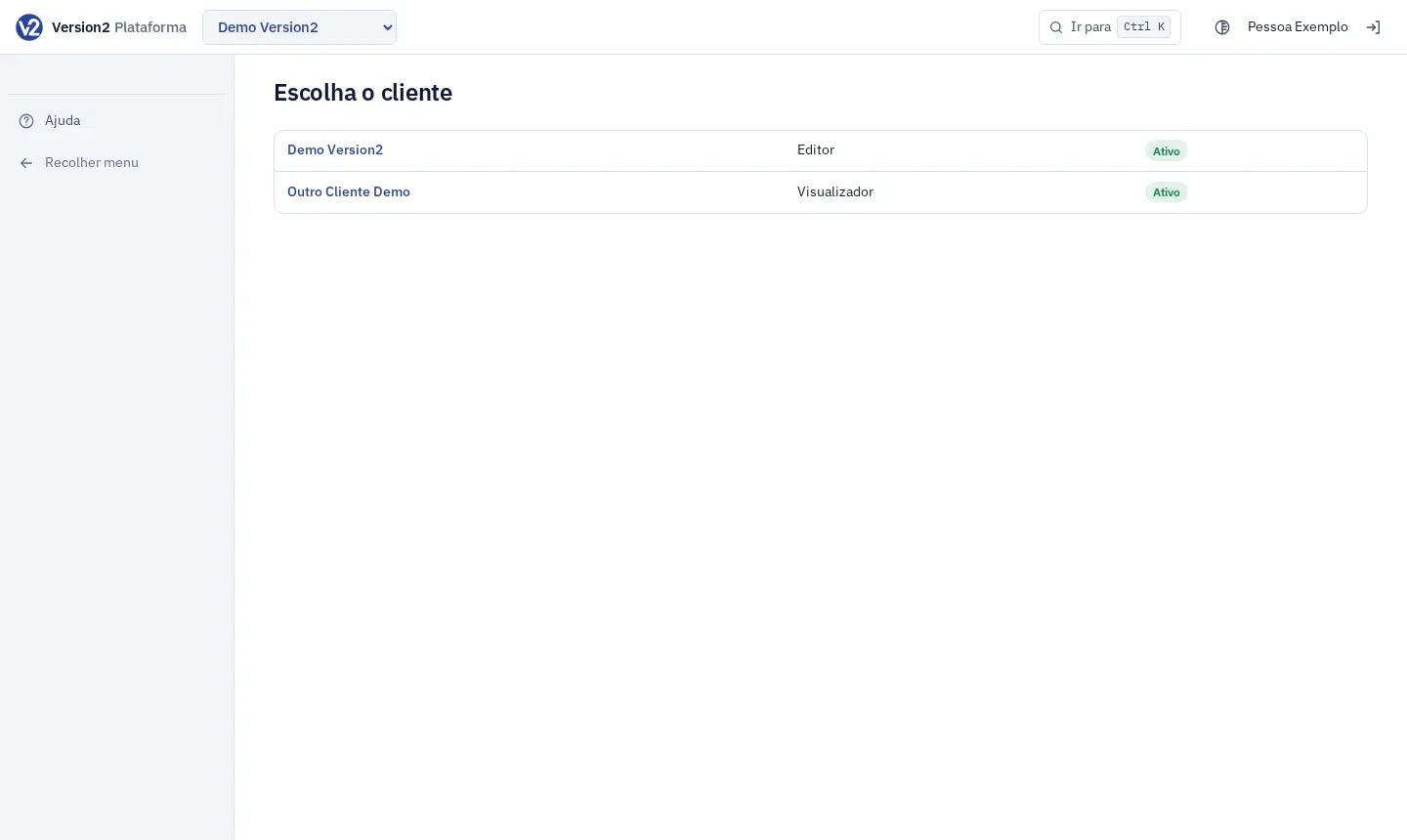
If you have access to more than one customer, pick one on the Escolha o cliente (Choose the customer) screen. With only one customer, the panel opens it directly. To switch customers later, use the selector at the top.
-
To sign out, click the Sair (Sign out) icon in the top right corner. The icon next to it switches the theme between automatic, dark and light.
Expected result
Section titled “Expected result”The panel opens on the customer’s home: the Recursive DNS dashboard or the first contracted module. If you opened a panel link before signing in, you go back to that screen after sign-in.
Tip: go straight to what you need
Section titled “Tip: go straight to what you need”Once in the panel, press Ctrl+K (on a Mac, Cmd+K) or tap Ir para (Go to) at the top to search for a page, a device, a node or an action (open SSH or WinBox in the console, run a backup now). Use the arrow keys to choose, Enter to open and Esc to close. Only what your profile allows is shown.
If something goes wrong
Section titled “If something goes wrong”- “Usuário ou senha incorretos.” (Wrong username or password.) Check your username or email and password. If you forgot the password, use Forgot your password.
- “Código incorreto.” (Wrong code.) or “Código já usado. Espere o próximo.” (Code already used. Wait for the next one.) Use the code the app shows now and check that your phone clock is correct.
- “A senha atual não confere.” (Current password doesn’t match.) On first sign-in, use the temporary password you received.
- “A nova senha precisa ser diferente da atual.” (The new password must be different from the current one.) or “a senha precisa ter pelo menos 12 caracteres” (the password needs at least 12 characters). Pick another password. Obvious passwords or passwords containing your username are not accepted.
- “A confirmação não confere com a nova senha.” (Confirmation doesn’t match the new password.) Type the same password in both fields.
- “O acesso ao painel está suspenso.” (Panel access is suspended.) The customer’s panel access is suspended. The DNS servers keep working. Contact Version2 at [email protected].
- “Nenhum cliente” (No customer). Your user doesn’t have access to any customer yet. Ask a Manager for an invitation.