
Command filters
Block or log dangerous commands typed in SSH and Telnet sessions.
Who can do this: the Manager, people with Total on Remote Access, or a Remote Access manager.
Step by step
Section titled “Step by step”-
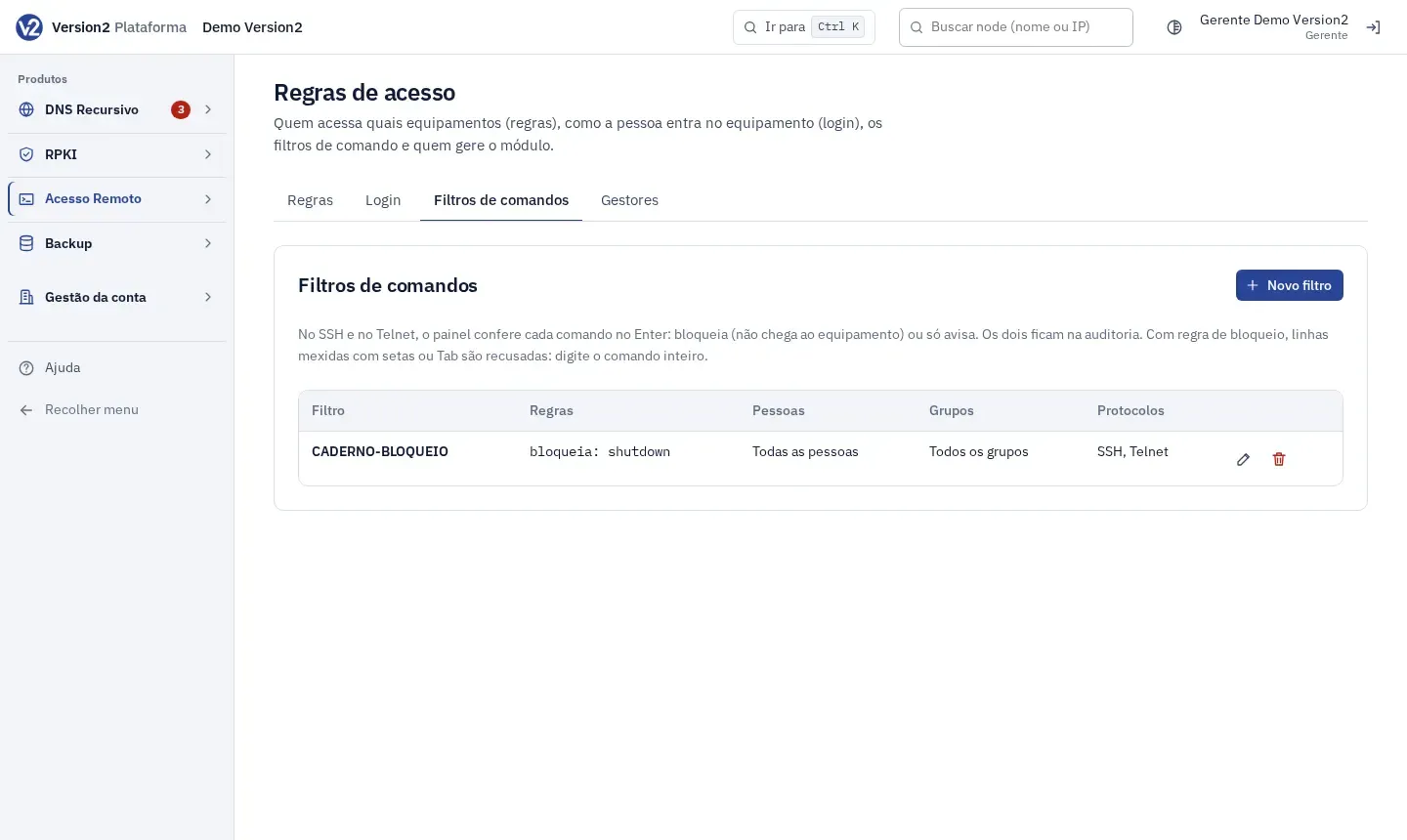
Open Regras de acesso (Access rules) and the Filtros de comandos (Command filters) tab.
-
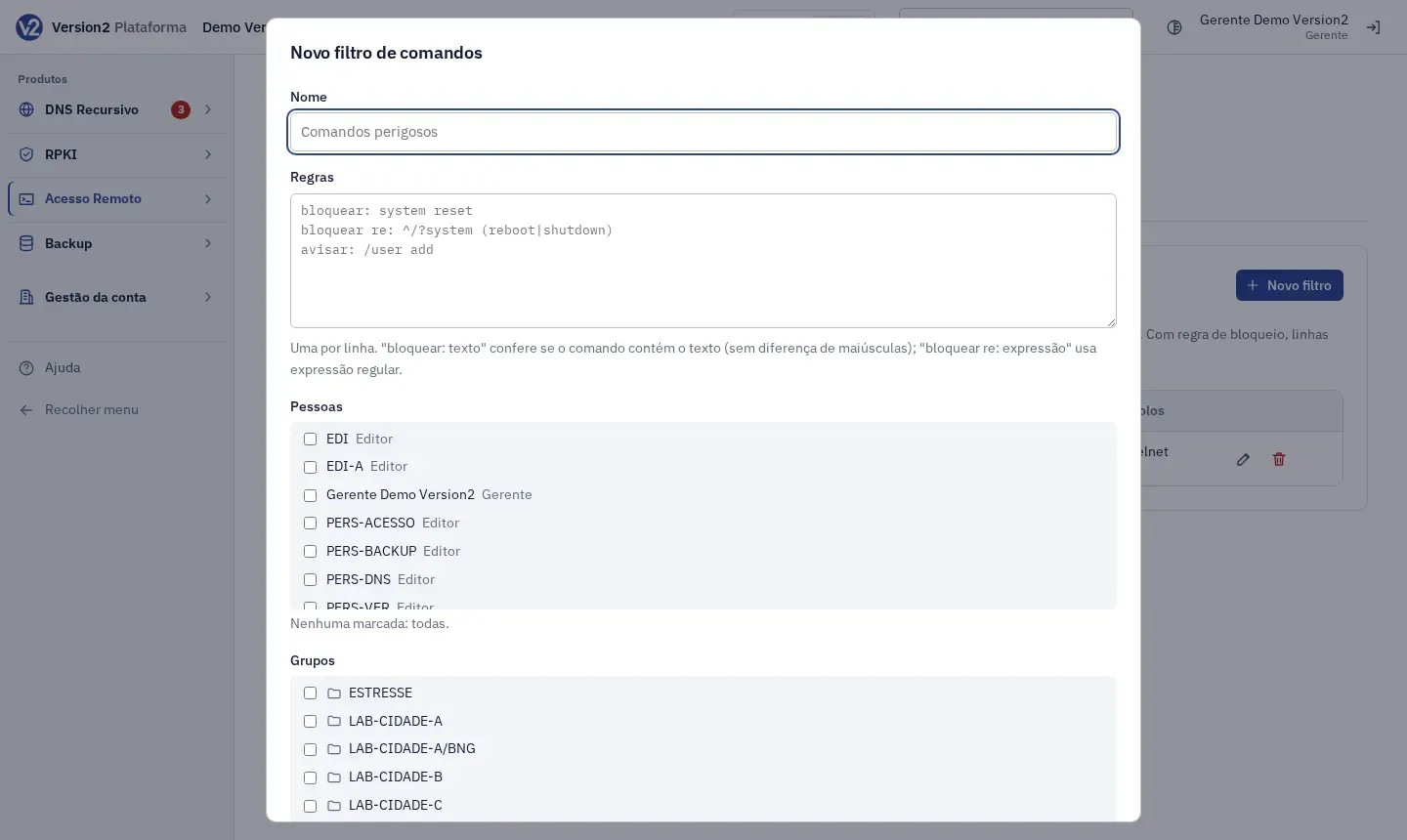
Click Novo filtro (New filter) and fill in Nome (Name, e.g. Comandos perigosos).
-
Under Regras (Rules), write one rule per line:
bloquear: system resetbloquear re: ^/?system (reboot|shutdown)avisar: /user addbloquear: texto(block) blocks any command that contains the text, case-insensitive.avisar: texto(warn) lets the command through and logs it.reafter the action switches to a regular expression.
-
Check Pessoas (People; none checked means everyone), Grupos (Groups; none checked means all) and Protocolos (Protocols: SSH and Telnet).
-
Leave Ligado (On) checked and click Salvar (Save).
Expected result
Section titled “Expected result”The panel checks each command when you press Enter. If a command is blocked, it never reaches the device and the session shows “Comando bloqueado pelo filtro” (Command blocked by filter) with the filter name. With a warning, the session shows “Aviso do filtro (nome): o comando ficou registrado.” (Filter warning (name): the command was logged.) Both cases go to the audit log. A filter that is off shows as Desligado (Off) in the list.
Filters apply to SSH and Telnet. WinBox and RDP sessions do not go through them. If you delete a filter, new sessions are no longer checked against it.
If something goes wrong
Section titled “If something goes wrong”- “Linha N: comece com “bloquear:” ou “avisar:” (e “re” para expressão).“ (Line N: start with “bloquear:” or “avisar:”, and “re” for an expression.) Fix the start of that line.
- “Linha editada com setas ou Tab: com filtro de comandos, digite o comando inteiro.” (Line edited with arrows or Tab: with a command filter, type the whole command.) Type the full command without using Tab or the arrow keys to edit it.